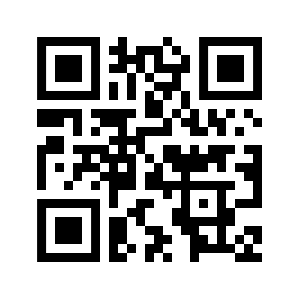



ADMISSIONS


GOVERNMENT (KUCCPS) SPONSORED STUDENTS (GSSP)
Congratulations for having been admitted at MMUST, your University of choice. To access your admission letter and other admission documents, please visit admission.mmust.ac.ke and follow instruction thereof.
Kindly note that you can download your admission letters, Student Hand Book and Portal Activation Procedure from the above link.
Portal Activation Procedure can also be accessed in the accordion below

SELF SPONSORED STUDENTS (SSP) APPLICATION
To join the university as a self sponsored student, follow the steps below:
1. Click here to open the Application Portal and Select the programme you want to undertake (ensure you meet qualifications as stated in "Our Programmes" section)
2. Click on "APPLY" to create account or login if you have an account.
3. Fill in the required information in each step of the application and submit.
After Succesful Application and admission, Visit ICT for your email credentials. Thereafter proceed with Portal activation as per the instructions below.
QUICK LINKS
1. How do I access the MMUST portal
Open your web browser (preferably chrome)
Once you are connected type portal.mmust.ac.ke in the URL.
You know you have connected successfully when you see the portal login screen.
2. How do I create a portal account as a first time user?
Procedure
Visit http://portal.mmust.ac.ke/
Click create account
Select Role as Student
Enter university registration number in the first box
Enter password in the second box
Re-enter the password to confirm the same in the third box
Click submit button. (Activation link will be sent to your student email)
Login to your student Corporate email
For KUCCPS Students visit Admission.mmust.ac.ke to find your email credentials
For Self Sponsored Students visit ICT to get your email address
Clink the Account creation email in your inbox to activate the portal account
You can now login to student portal(portal.mmust.ac.ke) using student registration number and portal password
3.How to do I reset my password?
After you have tried to sign in unsuccessfully, click on the “Forgot password?” link located under the login fields on our portal and you can easily reset your password via email or security questions.